Simplify the UI HUD for Faster Execution
Simplify the UI HUD for Faster Execution
The best UI HUD is not the one that shows everything. It’s the one that makes the next move obvious in under 3 seconds. Once a screen starts looking like a quest log stuffed with every side mission imaginable, execution slows down fast.
That’s the trap: more buttons, more stats, more prompts, less action. If your interface makes people think too hard before they can start, they won’t start. They’ll hover, hesitate, and bounce.
Here’s the thing. A clean HUD isn’t about stripping away power. It’s about removing friction so the right action feels immediate, obvious, and worth doing. In this article, we’ll break down why complexity kills execution, what belongs on the screen, and how to keep the interface sharp without turning it into a blank wall.
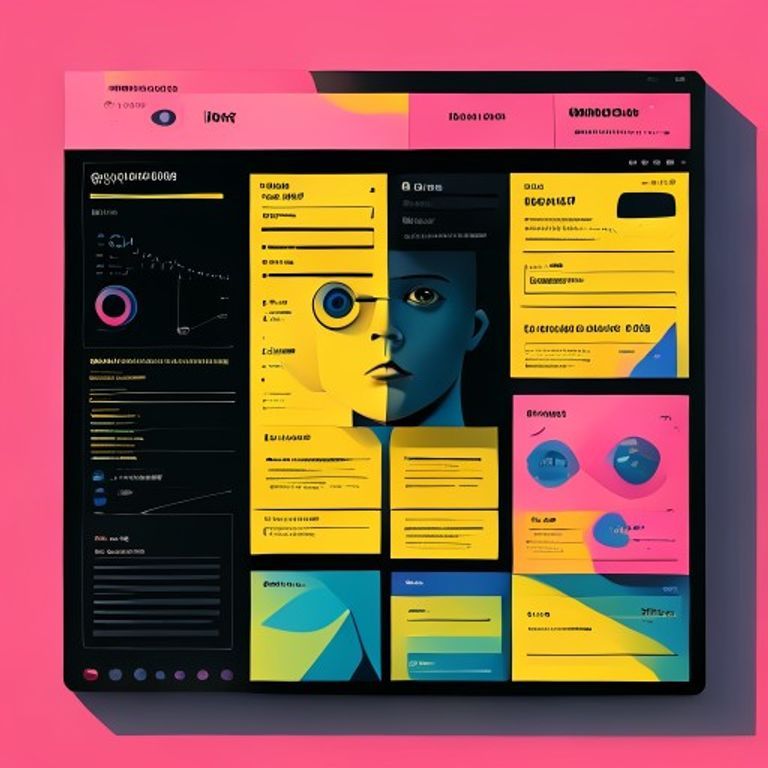
A strong HUD doesn’t ask users to interpret everything at once. It points to the next action and gets out of the way.
Why does a complex UI HUD kill execution?
Because every extra option is a tiny tax on attention. When the user opens a screen and sees six competing actions, three stats panels, two alerts, and a settings icon fighting for space, the brain has to sort the mess before it can act. That sorting takes energy, and energy spent deciding is energy not spent doing.
That’s decision fatigue in plain terms. The more visible choices you throw at someone, the more likely they are to delay the first click, second-guess the path, or abandon the flow entirely. A cluttered user interface doesn’t just look messy; it creates hesitation at the exact moment you need momentum.
Is: a HUD that shows only what the user needs to act now, with clear information hierarchy and low cognitive load.
Is not: a dashboard that displays every metric, menu, and notification just because it can.
Think about it like a game screen overloaded with side quests. Sure, it’s technically rich. But if the main quest gets buried under flashing icons and stacked prompts, the player spends more time scanning than progressing. The same thing happens in product interface design: too much visible detail creates visual clutter, and visual clutter slows task completion.
Simpler HUDs win because they reduce the number of decisions between intent and action. Fewer visible choices mean faster navigation. Faster navigation means less friction. And less friction means the user is more likely to complete the workflow instead of getting stuck in the mental version of “I’ll do it later.”
💡 The 5-Second Test
Show the HUD to someone for 5 seconds, then hide it. If they can’t tell you the next best action without guessing, the screen has too much noise. The fix is usually not more guidance. It’s better hierarchy, fewer visible controls, and a cleaner path to the first click.
The payoff is bigger than aesthetics. When the interface makes the next move obvious, users start faster, stay focused longer, and follow through more often. That’s the real win: not a prettier screen, but a system that helps people execute before their attention gets pulled in five directions.
What should stay on the HUD and what should be hidden?
Keep only the information that helps you make the next decision. Not the next ten decisions. Not every possible stat. If something doesn’t change what you do in the next 3–5 seconds, it probably doesn’t belong front and center on the HUD.
That’s the cleanest way to reduce complexity without making the interface feel empty. You’re not stripping the system down to nothing. You’re separating immediate action from background detail, so the player’s attention stays on execution instead of scanning a wall of numbers.
Think of it like gearing up for a mission. You don’t equip your whole inventory at once. You wear the items that help right now, and you stash the rest until you need them. Your HUD should work the same way: current objective, key resources, and the one or two signals that tell you what to do next.
💡 The ruthless HUD filter
Is: a quick test for deciding what stays visible. If an element supports an immediate action, keep it. If it only adds context, move it deeper. Is not: a place for every metric, history log, or “nice to know” detail. If the player can’t act on it right now, it belongs in a tooltip, dropdown, or secondary panel.
Here’s the thing: the best HUDs use progressive disclosure. The top layer shows the essentials. The second layer gives you more detail when you ask for it. The third layer is for deep stats, logs, and advanced settings. That keeps navigation simple and lowers decision fatigue because the brain isn’t forced to process everything at once.
A practical rule: if a screen has more than 5–7 active elements competing for attention, you’re probably creating visual clutter. For example, a task HUD might show only the current quest, one progress bar, one alert, and one primary action button. Everything else — cooldowns, history, secondary objectives, settings — can live in expandable menus or hover tooltips.
This is where information hierarchy does the heavy lifting. Put the most important signal in the biggest, clearest spot. Push supporting details into smaller, quieter spaces. The result is less friction, faster task completion, and a user interface that feels calm even when the work itself is intense.

Show the player what matters now, hide what matters later. That’s how you cut cognitive load without losing depth.
If you want a fast test, ask one question: “Can the user act on this immediately?” If the answer is no, defer it. That single filter will remove more clutter than any visual redesign ever could.
How do you simplify the HUD without losing functionality?
Start by treating the HUD like a loadout screen, not a dumping ground. If every control fights for attention, your users spend more time decoding the interface than completing the task. The fix is simple: organize the UI HUD into clear clusters, hide advanced options until they matter, and make the important stuff visually obvious.
Think in terms of execution speed, not just aesthetics. A cleaner HUD cuts cognitive load, reduces decision fatigue, and helps users move from “What am I looking at?” to “Done” faster. That’s the whole game.
Cluster related controls so the eye has fewer places to jump
If five actions all belong to the same workflow, they should sit together like a tight party roster. Don’t scatter save, edit, duplicate, and delete across different corners of the screen. Put them in one cluster, label the cluster clearly, and keep the spacing consistent.
Here’s the thing: people scan in chunks, not in a neat line-by-line checklist. A grouped HUD lets users recognize patterns fast. In practice, that means fewer missed buttons, fewer accidental clicks, and less friction when they’re trying to complete a task under pressure.
Use progressive disclosure like tiered abilities
Progressive disclosure means showing the basics first and revealing advanced options only when the user needs them. The core moves stay on the main HUD. The niche stuff lives behind a secondary panel, an expandable menu, or a hover state.
That’s exactly how a good RPG handles skills. You don’t throw the full spellbook at the player on minute one. You give them the starter kit, then unlock more as they level up. A dashboard with 3 visible primary actions and 7 tucked-away advanced controls is usually easier to use than one giant panel with all 10 staring back at you.
💡 Design rule that actually works
Keep 3 to 5 primary actions visible at once. If you need more than that, create secondary layers. Users should never have to choose between six equally loud buttons just to do the obvious thing.
Replace text clutter with icons, spacing, and hierarchy
Dense labels and duplicate indicators don’t make a HUD clearer. They make it noisier. Replace repeated text with icons where the meaning is obvious, then use spacing and weight to show what matters most.
For example, a “Health 82%” label, a red bar, and a second numeric badge all say the same thing. Pick one primary signal and support it with hierarchy. Bold the most important state, dim the supporting details, and leave the rest out until the user asks for it. That’s minimal design with a purpose, not minimal design for show.
The result? Less visual clutter, faster navigation, and better task completion. You’re not removing power. You’re removing friction so the right action is the obvious one.
💡 Quick HUD cleanup test
If a user can’t identify the next best action in under 2 seconds, the interface is doing too much. Group the controls, hide the extras, and make the main path visually dominant.
Simplifying the UI HUD isn’t about stripping features. It’s about sequencing them so the user sees the right thing at the right time. That’s how you keep functionality intact while making execution feel faster, cleaner, and way less exhausting.
How can you test whether your simplified HUD improves execution?
You don’t know the HUD is better just because it looks cleaner. You know it’s better when people move faster, hesitate less, and finish the task without wrestling the interface. That’s the real test of execution.
Start with time-to-first-action. If a user used to take 8–10 seconds to make their first meaningful move and now starts in 3–4 seconds, that’s a strong signal your minimal design is reducing cognitive load. Track this on the first screen, the first click, and the first completed action. Those three numbers tell you whether the interface is helping or getting in the way.
💡 Measure friction, not just clicks
A faster click count means nothing if users are still pausing, backtracking, or opening the wrong panel. Watch for hesitation, misclicks, and abandoned flows. Those are the hidden scars of a HUD that still asks for too much attention.
Here’s the thing. A stripped-down HUD should feel like a clean opening move in a boss fight: obvious, fast, and hard to mess up. If people need a tooltip tour just to begin, the redesign is still carrying too much baggage. You want the minimum effective interface — the smallest set of controls that still lets users win.
Run quick A/B tests with two or three versions. Version A keeps the current layout. Version B removes one secondary panel. Version C pushes nonessential stats behind progressive disclosure. Test with a real task, like “complete setup and start the workflow,” then compare completion rate, first-action time, and error rate across at least 20–30 sessions per version if you can. Even a small sample will show you where the friction lives.
Test the HUD like a boss fight trial: keep the build that helps users act faster, not the one that just looks neat.
Look for the version that gets users into motion with the least mental drag. If one build cuts hesitation by 30% and reduces abandoned flows by half, that’s not a cosmetic win. That’s better usability, better navigation, and better task completion.
💡 The best HUD is the one users stop noticing
If the interface fades into the background and people get to the good part faster, you’ve done the job right. Keep trimming until every visible element earns its place in the fight.
That’s the standard. Not prettier. Not busier. Faster execution with less friction. In the next section, we’ll pull the whole system together and show how a simplified UI HUD supports long-term consistency instead of just one good session.
What should you remember about simplifying the UI HUD?
The real win is not a prettier screen. It’s a HUD with less complexity, so your brain spends less time scanning and more time executing. When the interface only shows what matters right now, you move faster, make fewer mistakes, and stop burning attention on noise.
That’s the whole point: reduce friction without stripping out power. Keep the essentials visible, hide the rest until it’s needed, and test the result against real actions, not opinions. Do that well, and your HUD becomes a clean command panel instead of a cluttered inventory screen.
Ready to Turn Your Goals Into Quests?
RPGLife turns your daily goals into missions, tracks your XP, and helps you keep the important stuff in front of you. It’s built for people who want less friction, more momentum, and a system that makes progress feel obvious.
Start Your AdventureFrequently Asked Questions
How do I simplify a UI HUD without losing important features?
Start by ranking every element by how often it drives action. If a control is rarely used, move it behind a menu or secondary panel instead of leaving it in the main view. The goal is to keep the core loop visible and hide the rest until it’s actually needed.
What belongs on the HUD and what should be hidden?
Keep the HUD focused on the few things users need to act right now: status, next step, and critical feedback. Hide setup tools, deep settings, and anything that doesn’t change the current decision. If it doesn’t affect the next move, it probably doesn’t deserve a permanent spot.
How can I test whether a simplified HUD improves execution?
Measure task completion time, error rate, and how often users hesitate before acting. Then compare the simplified version against the old one in a real workflow, not a mockup review. If users move faster and ask fewer “where is that?” questions, the simplification is working.